
AI fails happen — but with the right tools you can fix MidJourney fails and turn them into images worth keeping.
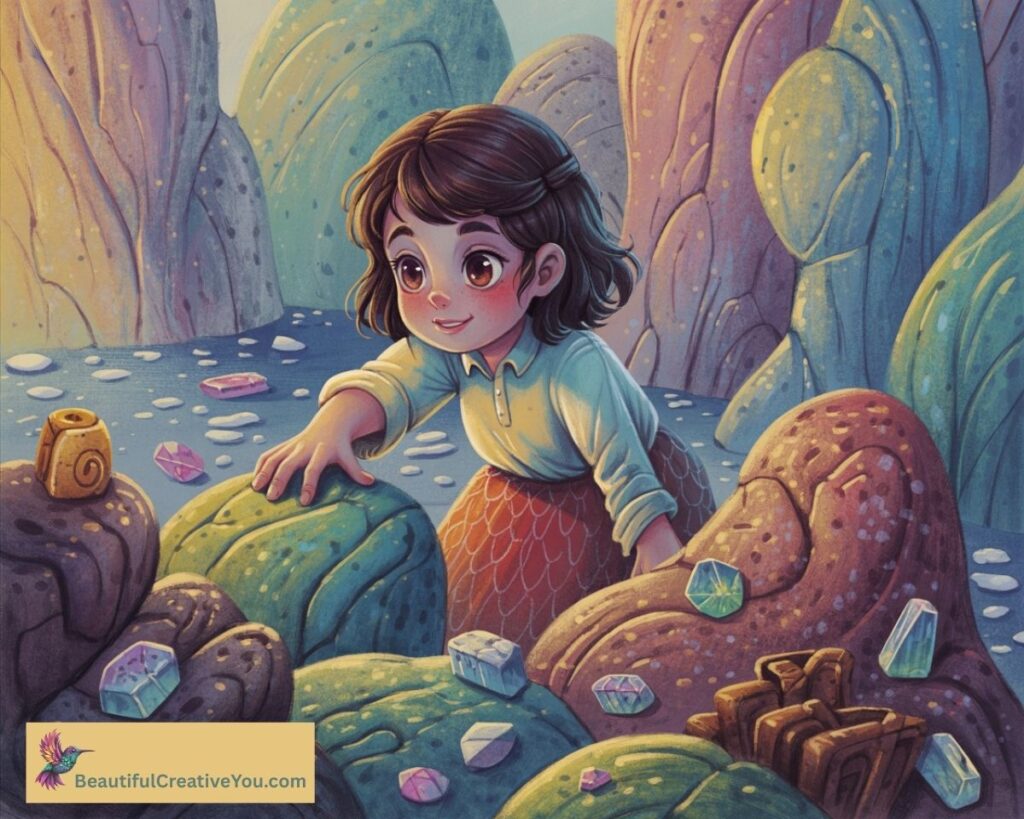
We’ve all been there. You run a prompt, get something magical… and then you notice it. A hand with too many fingers. A giraffe that’s missing a piece. Or, in my case, a sweet little girl who appeared to be growing out of a rock. (Yep. Rock child. She’s infamous in my group. 😂)
The truth is: it’s always easier to get your best image by rerolling and refining your prompt. But sometimes you hit a wall — nothing improves, or you finally land on an image you love that just has one (fixable) problem. That’s when MidJourney’s Edit feature becomes your new best friend.
⚠️ Quick reminder: there are no guarantees with AI. Words matter. The way you phrase your edit prompt can completely change the outcome. But with practice, you can turn “almost” into “awesome.”
How to Fix MidJourney Fails Step by Step
🎬 Prefer to see these fixes happen in real time? Watch the full 12-minute demo below. Then scroll down for screenshots and step-by-step notes you can follow at your own pace.
These examples show just how easy it is to fix MidJourney fails when you know where to click and what to ask for. The screenshots below highlight the key steps.
🧙 Fix MidJourney AI Image Fails: Witch Hand Rescue
My Halloween witch was adorable — except her hand was twisted in the wrong direction. Creepy, not cute.
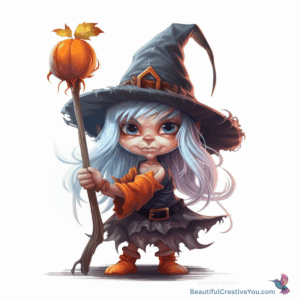
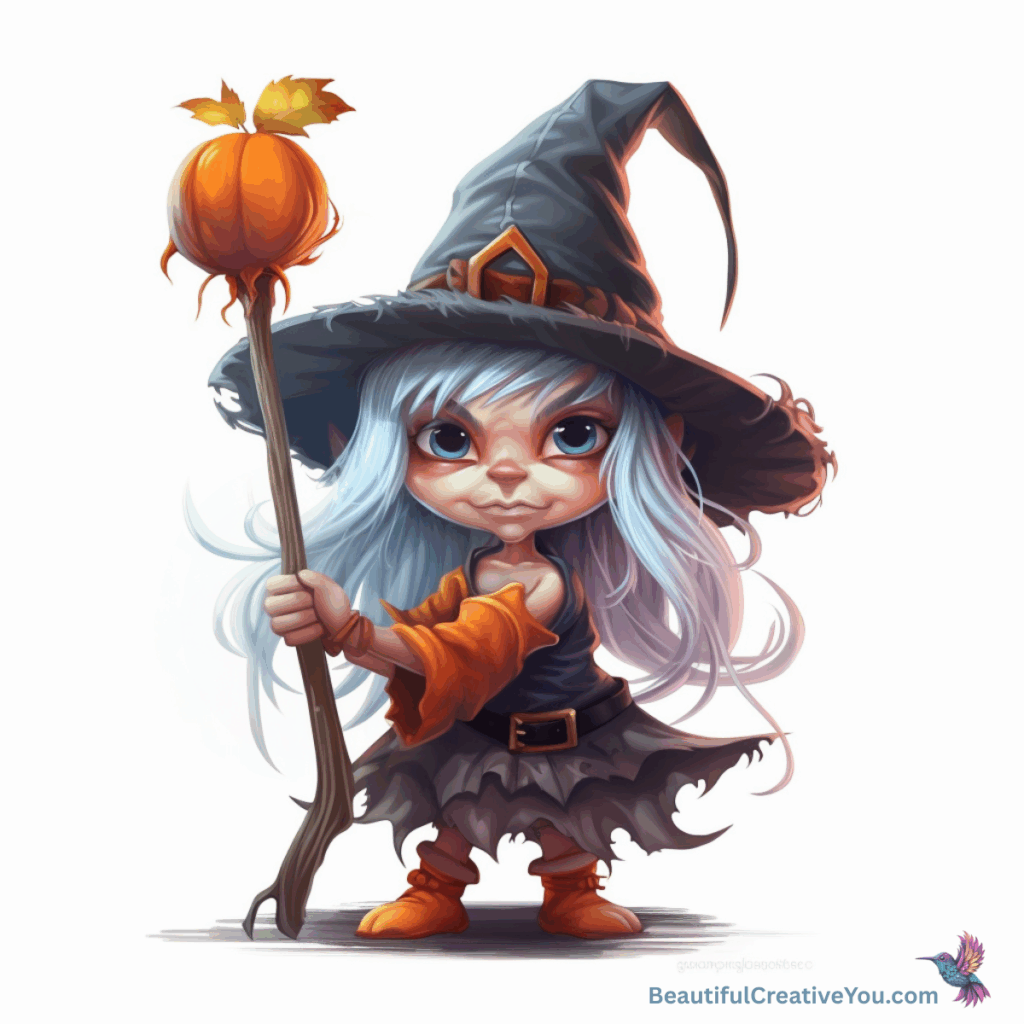
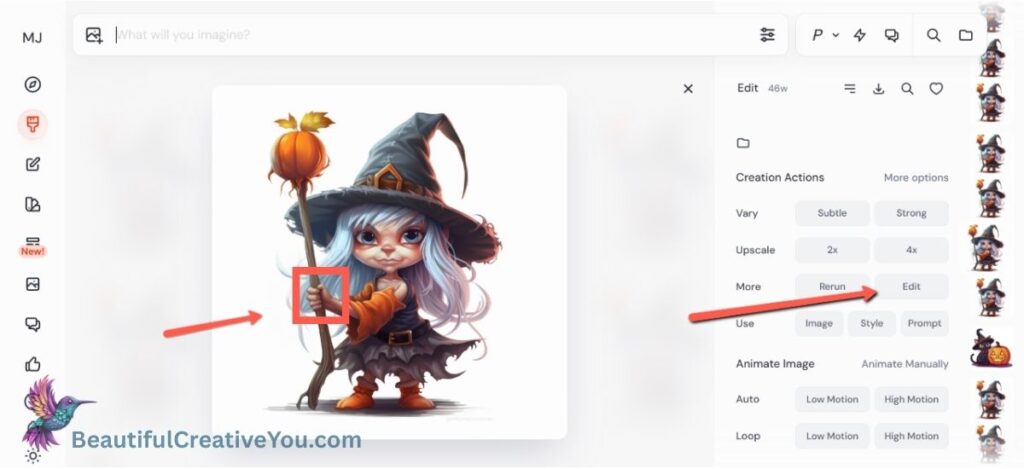
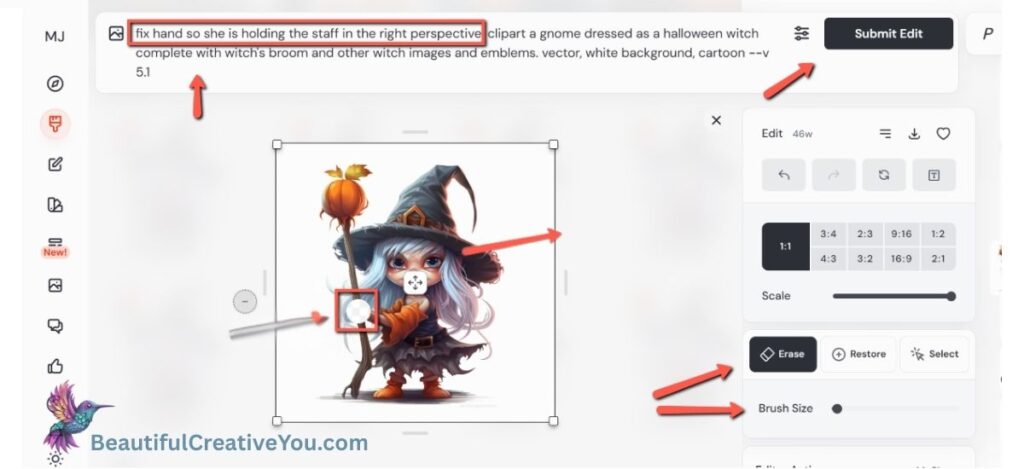
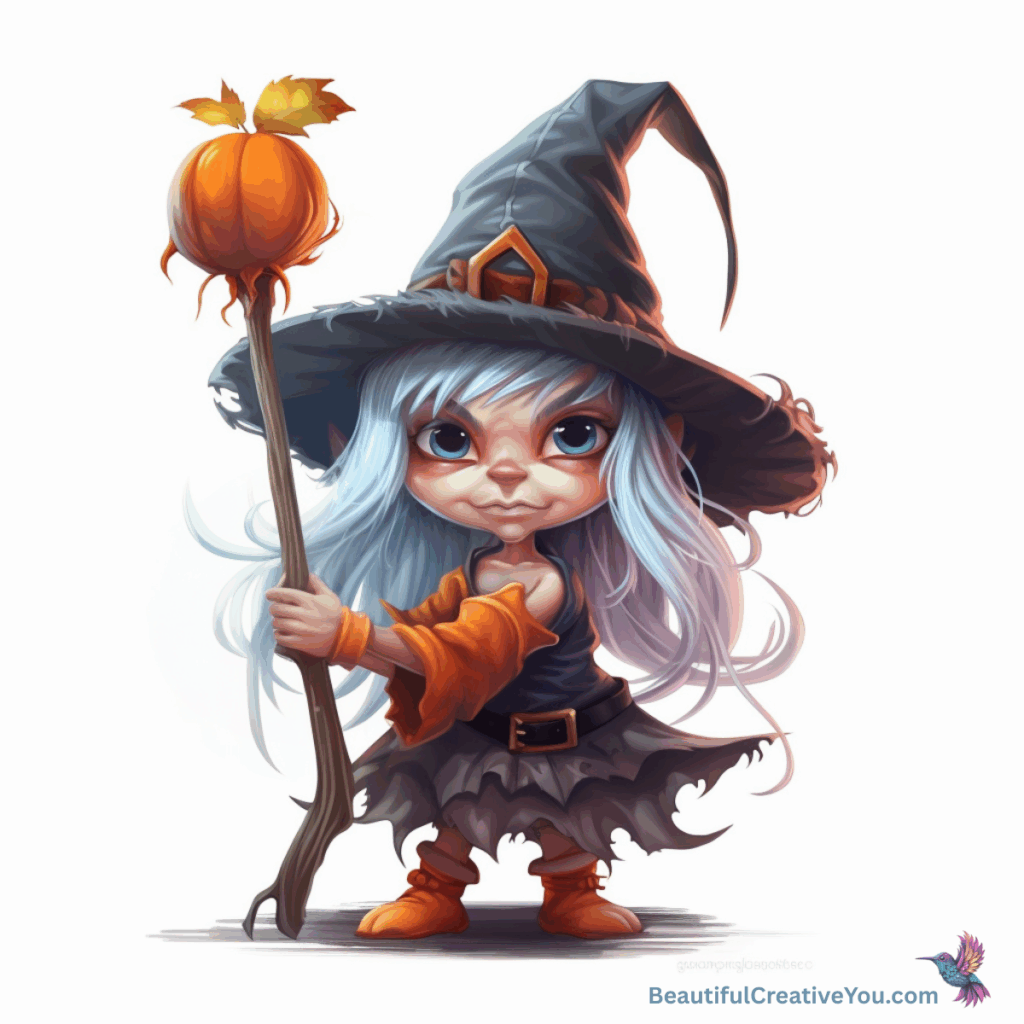
💡 Takeaway: Hands and feet are notorious for weird glitches. The Edit tool lets you refine just one spot instead of rerolling the entire prompt.
🦒 How to Fix MidJourney AI Image Fails: Giraffe Edition
This cheerful giraffe was missing a little ossicle (the bumpy “horn” on his head). Cute, but not quite right.
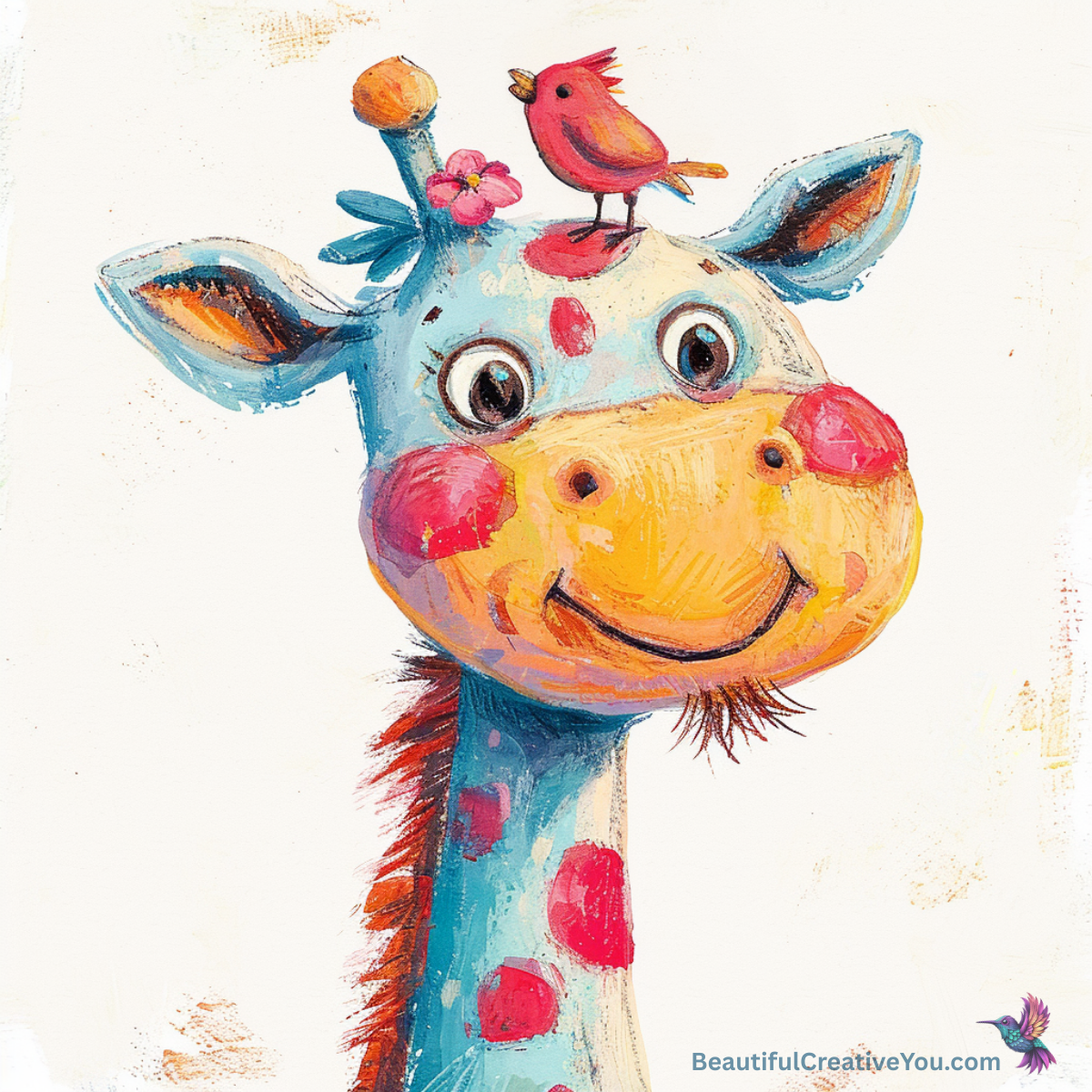
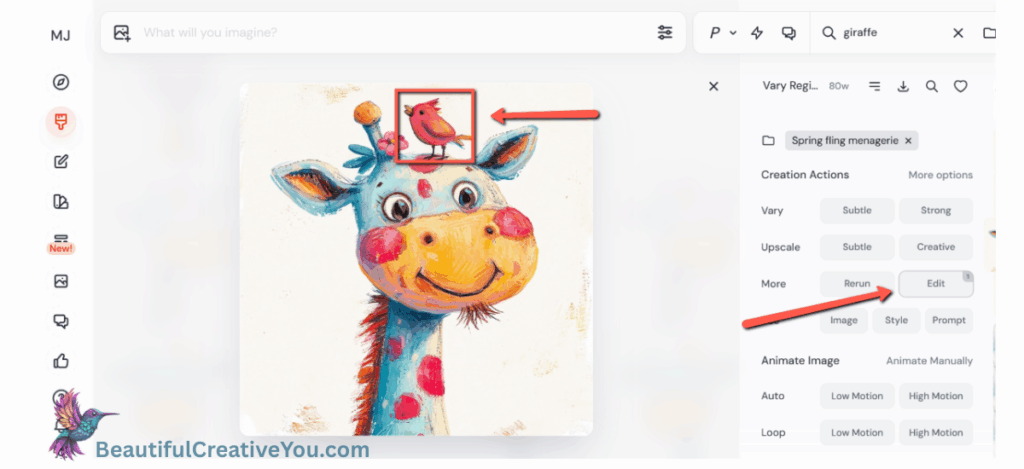
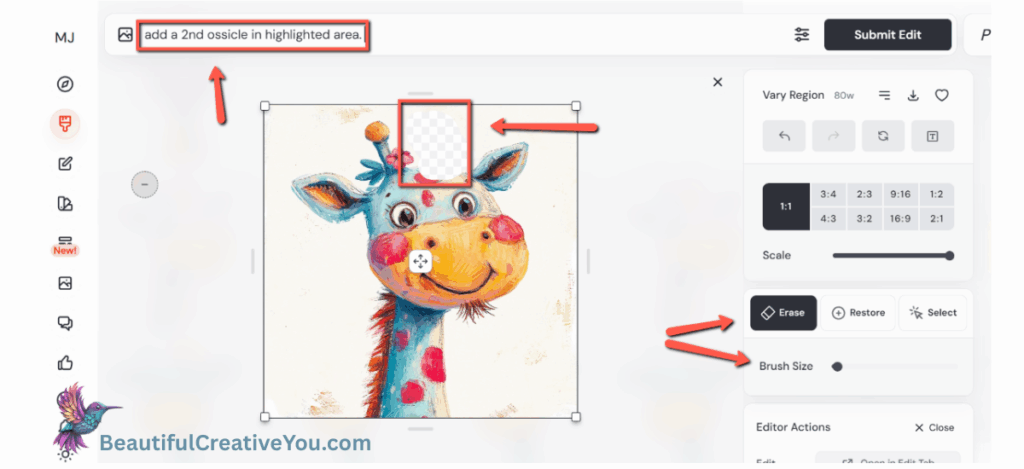
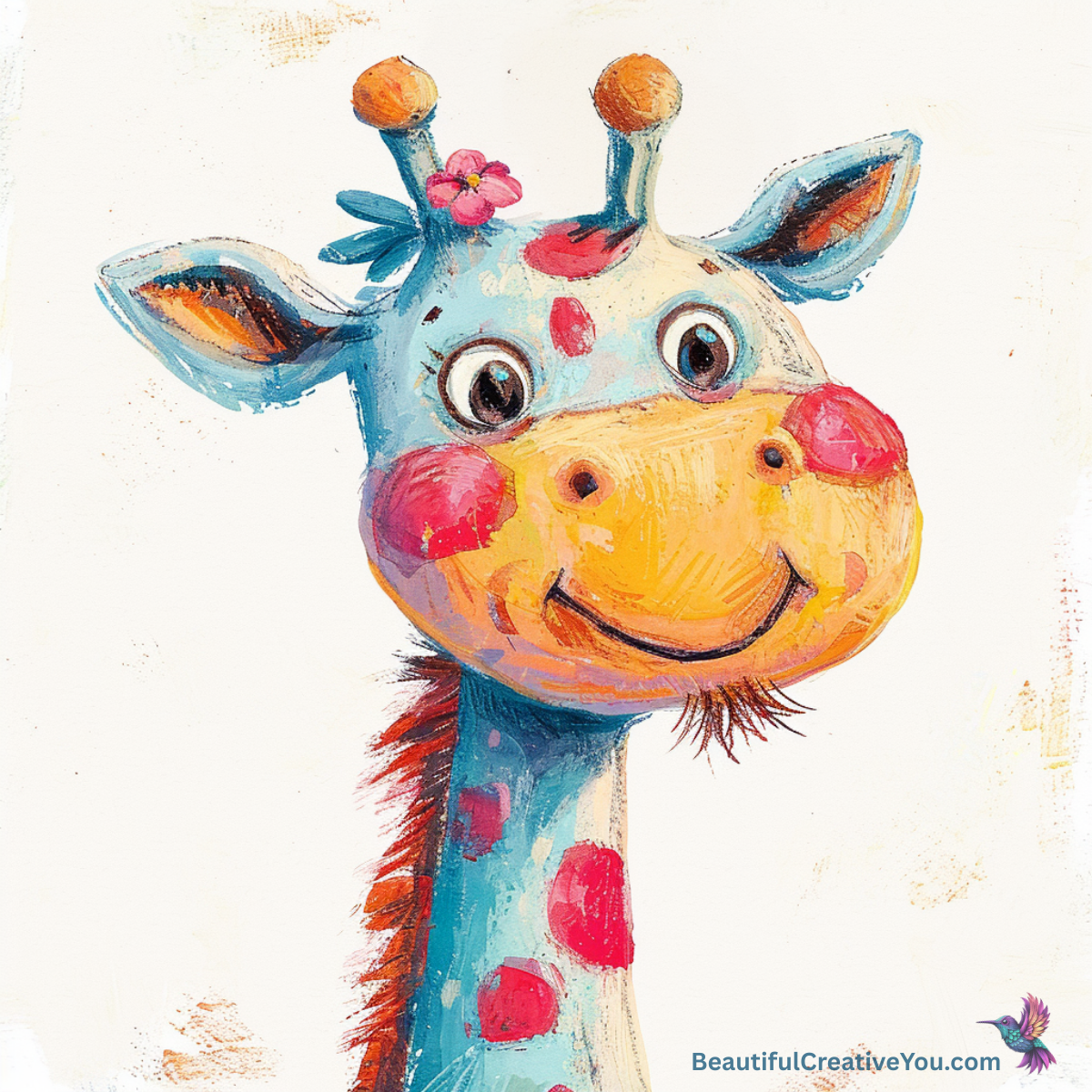
💡 Takeaway: Sometimes it takes a couple of tries, and sometimes AI decides to give you something you didn’t ask for (hello random bird 🐦). But persistence often pays off.
🪨 Rock Child Rescue
Ah yes, the infamous treasure hunt scene. I loved everything about this image… until I realized she appeared to be sprouting from a rock. Some thought it looked like a mermaid tail. Either way, it wasn’t working.
This one was a little different: Rock Child didn’t start in MidJourney, so I uploaded the image into MJ’s editor. That’s why you’ll see a slightly different workflow here — the same tool you can use to edit images created anywhere.
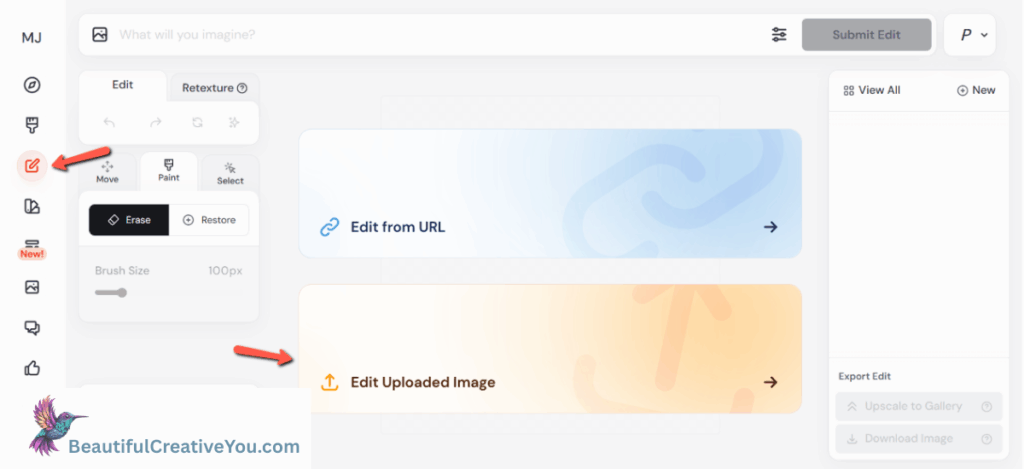
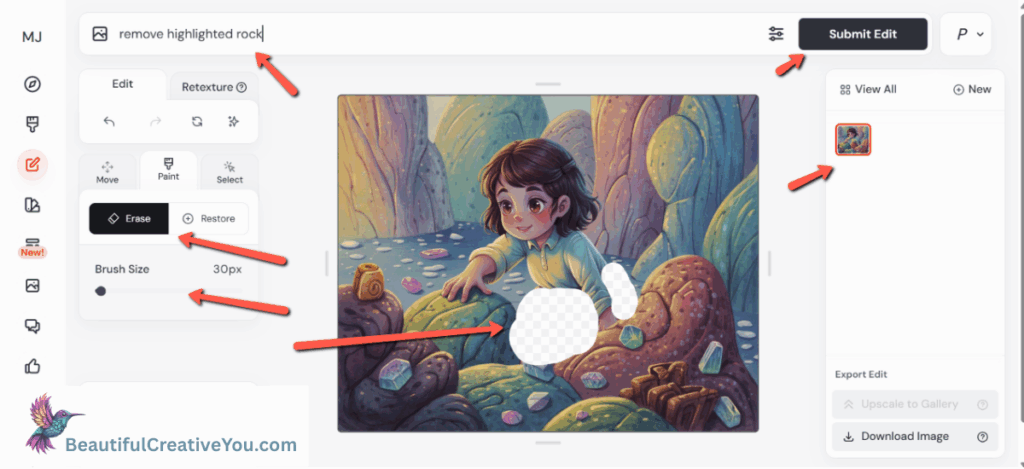
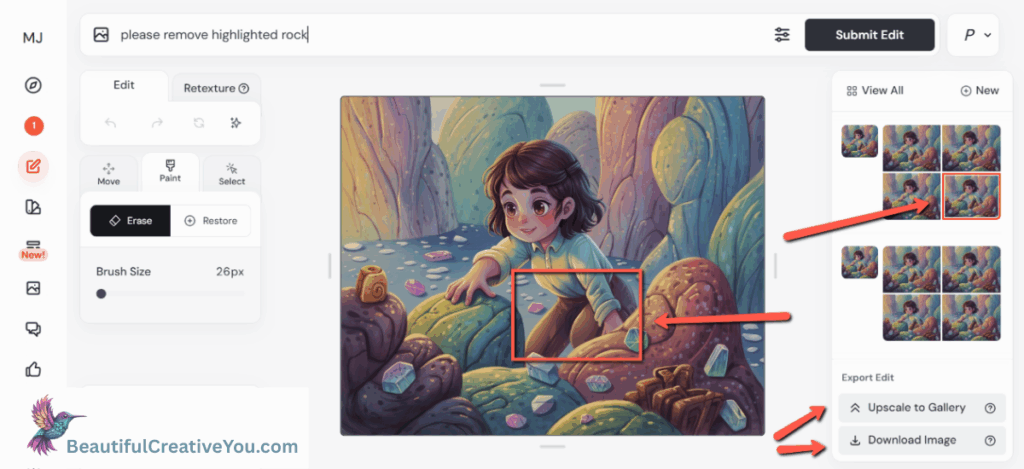
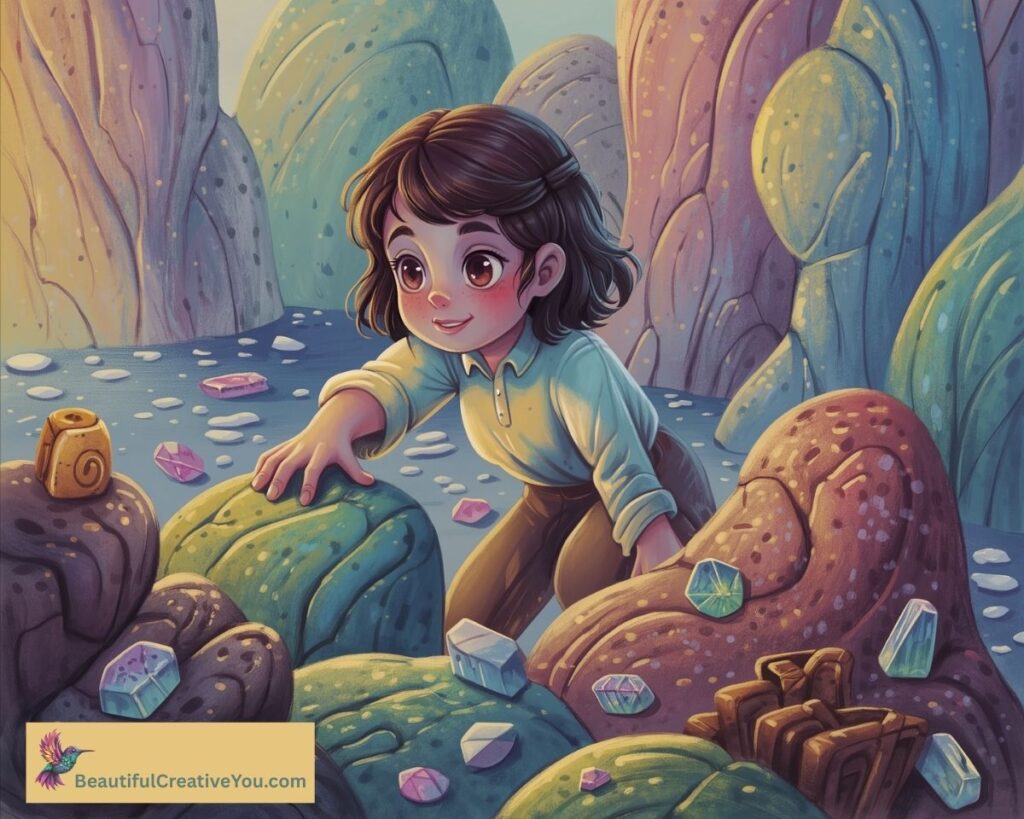
💡 Takeaway: You can even bring in images from outside MidJourney (this one started in Ideogram). Edits sometimes come out better than your first fix — it’s worth experimenting.
Wrap Up
Next time you spot one of your own MidJourney fails, pause before you hit delete — because with the right tweak, you just might rescue something magical. AI slips are part of the creative process, but they don’t have to mean wasted effort. With a few clicks and carefully chosen words, you can fix MidJourney fails and transform them into images you’ll actually want to use and share. Sometimes the “almost right” image just needs a little nudge to become exactly what you imagined.
✨ Mini Challenge: Got your own AI fail? Share it in the comments or over in my FB group — it’s the perfect place to swap stories and learn together.
📌 Bonus Resources:
- 📝 New to MidJourney? Grab my free MidJourney 101 Checklist to get started without overwhelm.
- 💬 Want more support + inspiration? Join my Facebook group for tips, demos, and a safe space to grow your creative confidence → Come hang out in our Creative Community on Facebook
- 🌟 Stay connected! Follow me on Facebook where I share weekly tips, behind-the-scenes demos, and a dose of creative magic.
🌿 Every fix, every fail, every playful attempt is proof that your creativity isn’t lost — it’s just waiting for you to invite it back in.
Here’s to making magic,
Terre
Beautiful Creative You