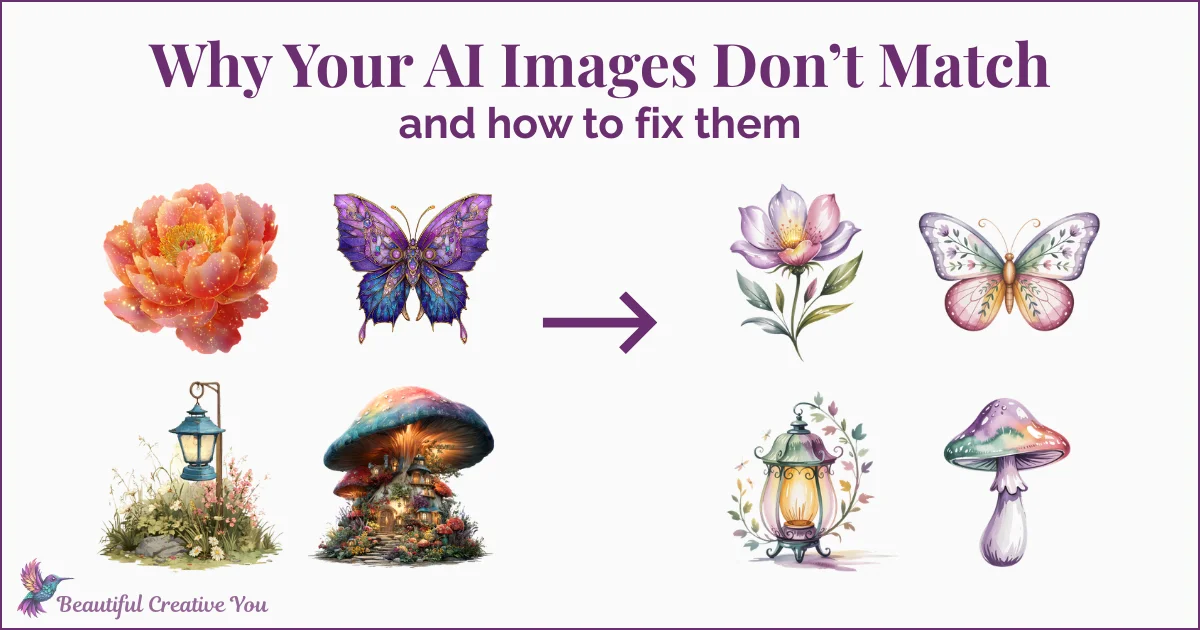
If you’ve ever wondered why your AI images don’t match, you’re not alone.
When people first start experimenting with AI clipart, something interesting usually happens.
The individual images can look great. A butterfly here, a teacup there, maybe a cute mushroom or a flower. But when you place them next to each other, they don’t feel like they belong in the same collection. This is usually the moment people start wondering why AI images don’t match—even when each one looks good on its own.
That’s the frustrating part when you're learning to create AI clipart as a beginner. The images themselves might be lovely, yet they don’t feel like a set.

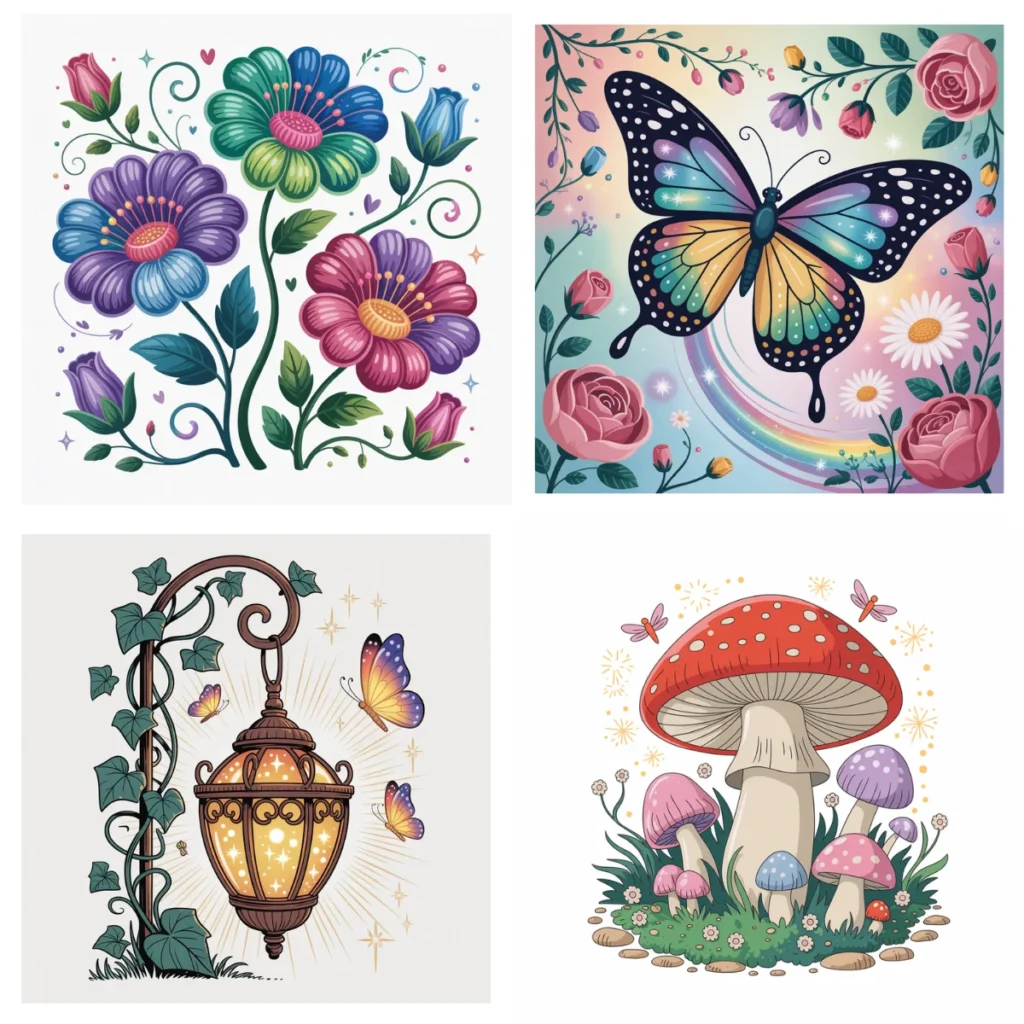
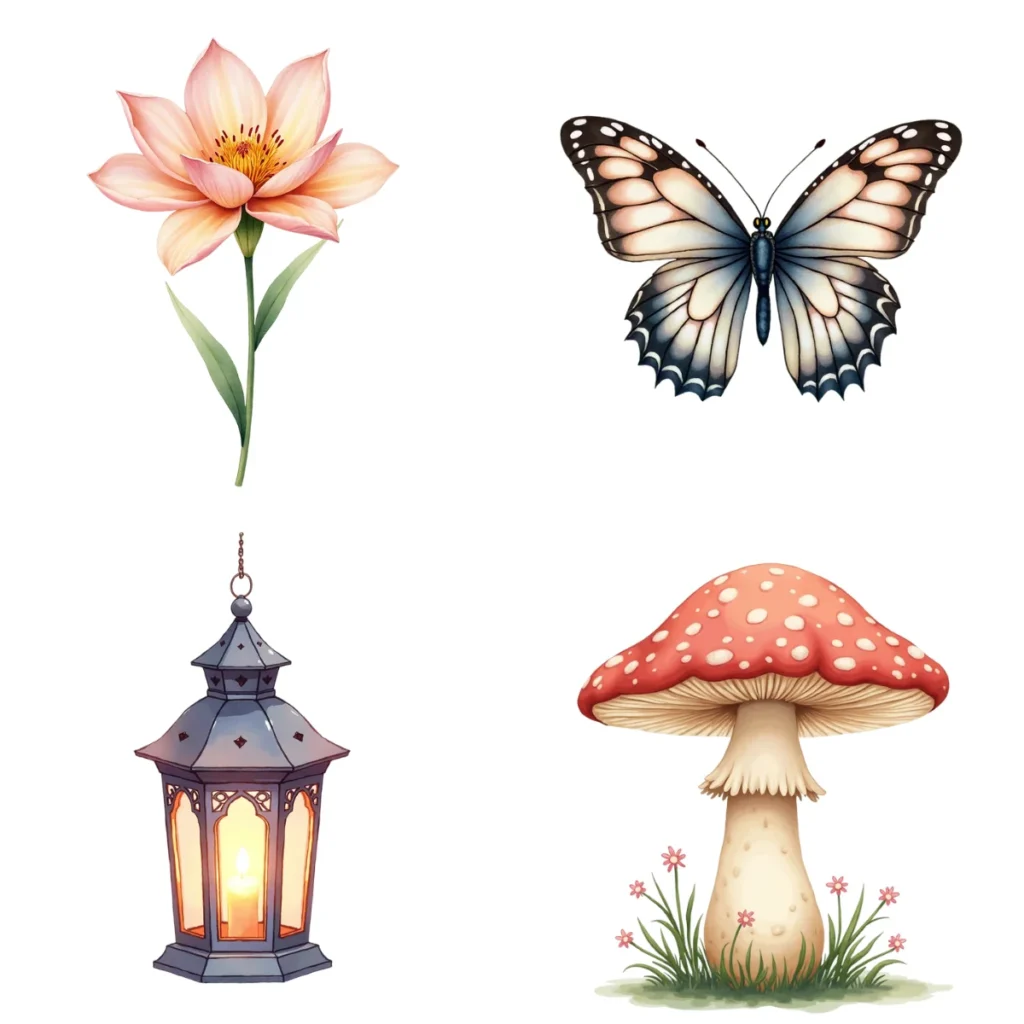
Same idea, different generators… very different results.
Why AI Images Don’t Match (and Why It Matters)
This is where things start to fall apart. The images are beautiful—but they don’t belong together. While these may look similar at first glance, each generator creates a slightly different energy and feel. With experience, you begin to recognize which one to use depending on your project.
The good news is you don’t need complicated prompts or a design degree to fix that. What you really need is a simple method that helps you make a few small decisions before you start generating images.
Creating clipart is actually a great way to learn the whole AI image workflow — prompting, cleaning images, and turning them into something usable.
Below is a simple, repeatable method for creating a small clipart set that actually looks like it was designed to go together.
Different AI image generators have different strengths. Some produce painterly illustrations, while others create cleaner shapes that work better for clipart. The method below works no matter which tool you prefer. If you're still deciding which one to use, my guide on how to choose the right AI image generator for your project can help.
Once you understand that cohesion comes from how you prompt—not just what you prompt—it changes everything.
The Simple Method That Helps When Your AI Images Don't Match
Think of cohesion a little like baking cookies. If you change the flour, sugar, and oven temperature every batch, you'll get surprises, not consistency. A cohesive set comes from a short “style recipe” you reuse.
Before you generate anything, decide on a few simple rules and write them down.
- Subject list: the items you'll make (8 to 20 is perfect for a first set)
- Art style: watercolor, flat vector, doodle, etc.
- Line style: thin outline, thick outline, or no outline
- Color palette: a small, repeatable set of colors (think 3 to 6)
- Background choice: transparent PNG look, or solid white background
Choose a Tiny Theme With a Clear Purpose
A tiny theme keeps your prompts focused, so your set stays consistent. Pick something with a clear use, too, because usage affects details and backgrounds. Sticker sheets need bolder shapes. Canva PNG elements need clean edges. Printables often look best with simple shading.
Keep your first set 8 to 20 items max. Also, write your list as simple nouns. Nouns help you move faster because you aren't styling each item in your head yet.
Doable theme ideas:
- magical garden
- woodland animals
- cozy kitchen
- fall pumpkins
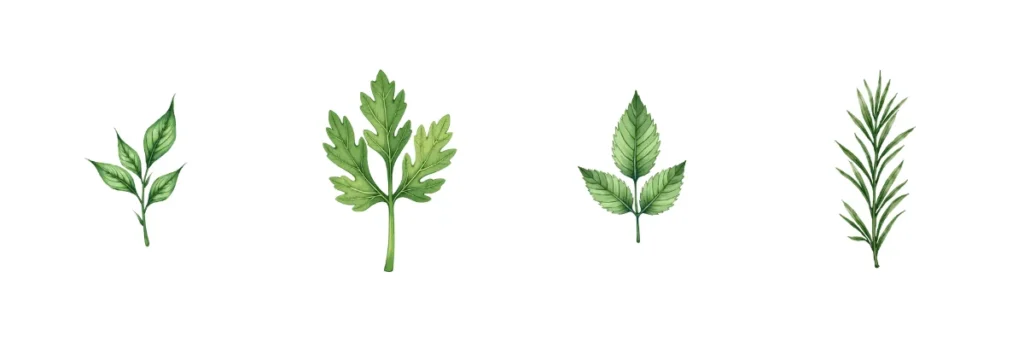
For example, “cozy kitchen herbs” could be: basil, rosemary, thyme, mint, parsley, oregano, sage, dill.
Choose One Art Style and Lock It In
Choose one art style and lock it in with a few “always” words.
Next, pick one style and commit to it for the whole set. Consistency beats variety here. You can always make a second set later in a different style.
Three beginner-friendly styles you might start with:
- watercolor clipart
- flat vector style
- cute hand-drawn doodle
Then add a few “always” words that stay in every prompt, such as: soft pastel palette, thin black outline, minimal shading, front-facing, simple shapes, centered, isolated.
One important warning: don't mix “photorealistic” with “cartoon” in the same set. That's like wearing hiking boots with a ballgown. Each might be nice on its own, but together it's confusing.
A simple prompt template you can reuse for every image in the set
Most messy clipart sets happen because you reinvent the prompt every time. A reusable template fixes that. Your “style recipe” stays the same, and you only swap the object.
If you want to avoid the common slip-ups that break consistency, take a quick look at these AI clipart mistakes beginners make before generating a full batch.
Also, if your tool supports creating consistent “sets” (or you're curious how some tools approach it), this walkthrough on creating sets of consistent images offers helpful context.
Create a Reusable Prompt Template
One of the easiest ways to keep a clipart set cohesive is to use the same basic prompt structure for every image.
Instead of writing a completely new prompt each time, create a simple template and only change the object you want to generate.
Think of it as filling in the blanks.
A simple structure might include:
• the object
• the art style
• the line style or texture
• the color palette
• the background choice
For example:
Single object clipart of a magical garden mushroom, soft watercolor illustration, pastel color palette, minimal shading, centered composition, isolated object, clean white background.
To generate the rest of the set, you keep the structure the same and simply change the object.
For example:
• magical garden mushroom
• glowing butterfly
• enchanted watering can
• tiny garden lantern
• whimsical flower
If you plan to mix and match pieces in designs, include words like “single object” or “isolated object” so the AI focuses on one item instead of building a full scene.
Because the prompt structure stays the same, the images naturally start to feel like they belong together.
Keep Prompts Clean and Focused
AI image tools tend to add extra details when prompts get overloaded with adjectives.
Words like whimsical, magical, cinematic, or intricate can push the generator to add backgrounds, props, or textures that make clipart harder to use.
When something keeps coming out wrong, simplify instead of adding more instructions.
Cohesive clipart rarely comes from the perfect prompt.
It comes from repeating a simple prompt on purpose.
Run a Quick Cohesion Check (Without Starting Over)
Generate 3 to 6 images first, not all 20. Then look at them together. You're checking for harmony, not flawless art.
This is also where mindset matters. If you tend to tweak forever, read this reminder about finishing over perfection. It's the difference between “I'm learning” and “I'm stuck.”
The 60-second side-by-side test: palette, lines, lighting, size––
Drop the images into one place so you can compare them fast (a Canva page, Google Slides, or even a folder preview).
Do a quick scan:
- Do the colors feel like the same family?
- Are the outlines the same thickness (or consistently none)?
- Does the lighting feel similar across images?
- Are objects a similar scale, with similar padding around them?
- Are backgrounds consistent (transparent look vs solid white)?
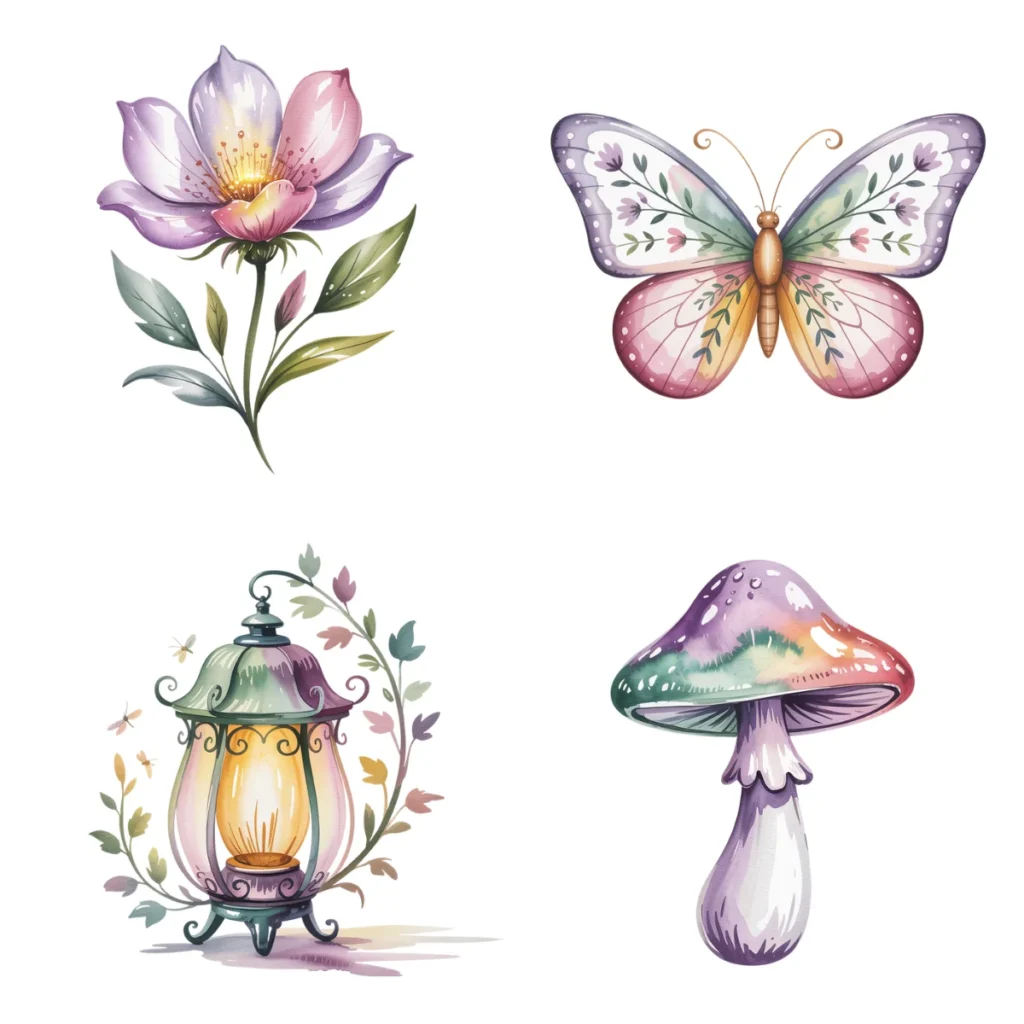
Notice how these feel like they belong together. This is what turns images into something you can actually use in a project.
Three quick fixes when one image does not match the rest
First, don't scrap the whole set. Fix the outlier.
- Regenerate using the exact same prompt, changing only the object name.
- If your tool supports it, add a short phrase like “match the previous images in this set.”
- Do light edits: crop to the same padding, adjust saturation slightly, or remove the background.
Once your set looks right, save that final prompt as your master prompt. Next time, you start from a strong base instead of starting over.
Not sure what kind of clipart set to create?
A lot of beginners don't struggle with generating images. They struggle with deciding what to make. Too many ideas can feel like no ideas.
That's exactly why I created the AI Image Prompt Generator. It’s a quick interactive tool that helps you choose a theme, style, and image ideas before you start generating. It walks you through a few creative questions and helps you turn a vague spark into a clear, finishable plan.
Try it the next time you feel torn between five themes, three styles, and zero confidence.
Start Small and Let the Set Grow
A cohesive AI clipart set doesn't happen by luck. It happens when you (1) write a simple style recipe, (2) reuse one prompt template, and (3) run a quick side-by-side check before you generate everything.
Start small today: pick one theme that feels meaningful, write 8 nouns, and generate the first 3 images to lock in the look. Once those feel consistent, finishing the full set gets so much easier.
Once you understand why AI images don’t match, you start to see that cohesion comes from how you prompt, not just what you prompt—and that changes everything.
Make This Easier on Yourself
Creating consistent images doesn’t have to feel like guesswork.
That’s exactly why I created a simple, free Image Prompt Generator. It helps you move from guessing to creating with intention.
If you’ve ever sat there wondering what to type… or why your images don’t quite match… you’re not alone.
It’s not that you’re doing it wrong.
It’s that no one really shows you how to guide the result.
That’s exactly why I created a simple free Image Prompt Generator.
You enter your idea, choose a few options, and it builds structured prompts for you—so you’re not starting from scratch every time.
The generator handles the structure so you can focus on the idea.
Try this today
Pick one small theme that feels fun to you.
Write down 8 simple objects, choose one art style, and generate your first three images using the same prompt structure.
If you’re not sure how to structure your prompt, you can use my Image Prompt Generator to help guide it.
You don’t need the whole set finished today. Just lock in the look. Once the first few images feel cohesive, the rest of the set becomes much easier.
Something to consider
“Small creative steps, repeated often, turn ideas into something real.”
Here’s to making magic,
Terre
Beautiful Creative You
✨ Does creating the image sometimes take longer than creating the thing you needed the image for?
If you’ve ever felt stuck staring at a blank prompt box, you’re not alone.
I made a little free AI Image Prompt Generator for exactly that. Tell it what you want to create, and it helps turn the idea into a ready-to-use prompt.
💜 Let’s stay connected!
I’d love to cheer you on and share even more creative sparks with you:
- Join the conversation in my free Facebook group: Beautiful Creative You Community
- Follow me on Facebook
- Follow along on Instagram
- Find fresh ideas on Pinterest
🌟 Come say hi — I’d love to see what you’re creating.

Hi…
I’m finding your posts very informative. Where can I find the Visual Project Planner? It sounds like something I need to have. 😀
Thanks!!
Hi Lori,
Sorry, I am just seeing your question now. The post should actually say “AI Image Prompt Generator” I just missed that when editing. You can access the generator at https://beautifulcreativeyou.com/generator. I have corrected the post. Thanks for asking that question and bringing it to my attention. Btw: I’m working on the visual project planner and I’ll announce in the group first when it is ready! >💜
Terre